
If your MyQ app keeps losing connection, your garage door stops responding, or you simply want to pair the opener with a new phone, learning how to reset MyQ garage door opener is the fastest fix. The process is simple and does not require any technical background or professional help.
In most cases, all you need is a few minutes, your smartphone, and access to the physical unit mounted in your garage. This guide walks through every reset method in plain language, from a quick power cycle to a complete factory reset, so you can pick the option that matches your situation and get your garage door working smoothly again.
What You Will Need Before Starting
Before attempting a reset, a little preparation prevents wasted time and repeated attempts. You do not need special tools, but having a few things ready makes the process smoother and faster.
You will need a smartphone with the myQ app installed and updated to its latest version, since older app versions sometimes fail to detect devices during pairing. You should also know your home Wi-Fi network name and password, as the opener needs this information to reconnect after a reset.
If the hub or opener unit is mounted high on the garage ceiling, a small step ladder will help you reach the buttons comfortably. Finally, set aside about ten to fifteen minutes of uninterrupted time so the pairing process is not interrupted midway.
Types of MyQ Resets
There are three main ways to reset a MyQ device, and each one serves a different purpose depending on what problem you are trying to solve.
Soft Reset (Power Cycle)
A soft reset simply involves unplugging the myQ hub or opener and plugging it back in after a short pause. This method does not erase any saved settings or paired devices, which makes it the safest first step whenever the app shows a connectivity error. Most temporary glitches, including the device appearing offline or the app freezing, are resolved through this simple restart.
Full Factory Reset
A full reset clears all previously paired remotes, keypads, and app connections from the device’s memory.
This is done using the physical Learn or Home button on the unit itself and is necessary when you plan to re-pair the opener from scratch, sell your home, or troubleshoot a persistent syncing issue that a soft reset did not fix. Because it wipes existing data, you will need to set up the device again afterward through the app.
App-Level Reset
An app-level reset means removing the device from your myQ account and adding it again as a new device. This method is useful when the hardware itself is working fine, but the app account or login is causing sync problems. It keeps the physical device settings intact while refreshing how the app recognizes and communicates with it.
How to Identify Your MyQ Device
Before performing any reset, it helps to know exactly which type of MyQ device you own, since button placement and LED colors can vary between models.
Chamberlain, LiftMaster, and myQ Smart Hub Differences
MyQ technology is used across several brands, including Chamberlain, LiftMaster, and the standalone myQ Smart Garage Hub.
While the underlying app and reset logic are similar, the physical unit design differs slightly, so checking your model number on the device label helps you follow the correct instructions without confusion.
Locating the Learn or Home Button
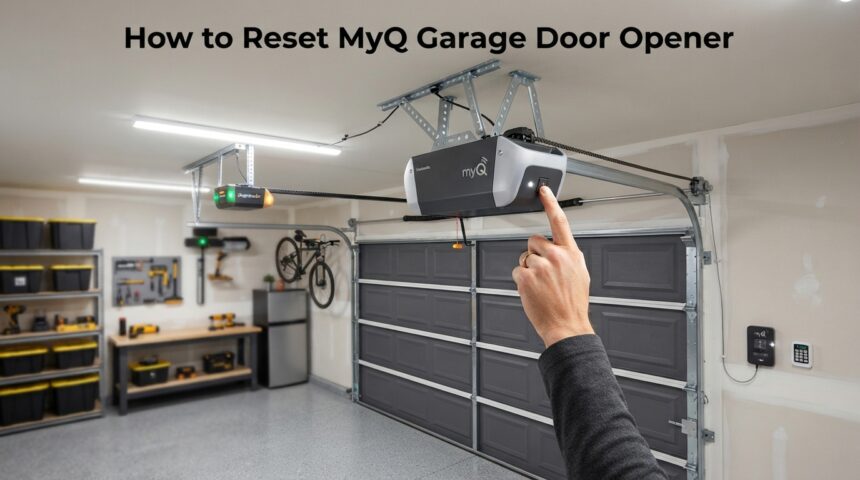
The Learn or Home button is usually found on the main unit near the antenna wire and is often colored purple, orange, yellow, or green depending on the model and manufacturing batch. This button is the key to performing a full reset, so locating it correctly before starting saves time during the actual process.
Step-by-Step: Soft Reset
This method is the quickest and safest option, and it should always be your first attempt before moving to a full reset.
Unplug and Wait
Start by unplugging the myQ hub or opener unit from its power source, or removing the battery if it is battery powered. Wait for about thirty seconds before doing anything else, since this pause allows the internal memory to fully clear any temporary errors that were causing the connection problem.
Reconnect and Test
Plug the unit back in and wait for the LED light to stabilize, which usually takes under a minute. Once the light settles into its normal pattern, open the myQ app and check whether the device shows as online. In most cases, this simple restart resolves minor glitches immediately.
Step-by-Step: Full Factory Reset
When a soft reset does not solve the issue, or you need to re-pair the device entirely, a full reset is the next step.
Press and Hold the Learn Button
Locate the Learn button on the unit and press and hold it until the LED begins blinking, which typically takes between six and ten seconds. This action clears all existing pairings stored on the device, including any remotes or keypads that were previously connected.
Re-Pair Through the App
Once the reset is confirmed, open the myQ app, select add device, and follow the on-screen instructions, which will usually prompt you to briefly press the Learn button again to complete the sync. After pairing is confirmed, test the garage door open and close function through the app to make sure everything works correctly.
Resetting via the MyQ App
If the hardware is functioning normally but the app connection feels unreliable, resetting through the app itself can solve the problem without touching the physical unit.
Removing the Existing Device
Open the app, go to device settings, and select the option to remove the current device from your account. This clears the app-side connection while leaving the physical hardware settings untouched.
Adding the Device Again
After removal, tap the add device icon and follow the guided setup to reconnect. Once paired, you can rename the device and adjust your preferences, such as notification settings and scheduled operation times, to match your daily routine.
Troubleshooting Common Issues
Even after following the correct reset steps, some users encounter minor hiccups. The table below summarizes common problems and quick fixes.
| Issue | Likely Cause | Quick Fix |
| App won’t detect device | Outdated app version | Update the app and retry pairing |
| LED blinking wrong color | Incomplete reset | Repeat the Learn button press |
| Wi-Fi keeps dropping | Weak signal or wrong band | Connect to 2.4GHz network closer to router |
| Door doesn’t respond | Pairing not completed | Redo full reset and re-pair |
| Firmware update stuck | Unstable internet | Restart router and retry update |
App Detection Problems
If the app cannot detect your device even after a reset, the most common cause is an outdated app version that lacks compatibility with the current firmware. Updating the app through your phone’s app store and retrying the pairing process usually resolves this quickly.
Wi-Fi Connectivity Drops
MyQ devices typically only support 2.4GHz Wi-Fi networks rather than 5GHz, so if your router broadcasts both bands under the same name, the device may struggle to stay connected. Splitting your network into separate 2.4GHz and 5GHz names, or moving the unit closer to your router, often fixes this issue.
When to Contact Support
Sometimes a reset alone will not resolve the underlying problem, and reaching out to official support becomes necessary.
Persistent Connectivity Failures
If the device repeatedly disconnects even after multiple soft and full resets, this may point to a hardware fault rather than a settings issue. In such cases, documenting the steps you have already tried will help support staff diagnose the problem faster.
Warranty and Support Contact
Most myQ devices come with a manufacturer warranty, so checking your purchase date and model number before contacting support can save time if a replacement unit is needed.
Tips to Avoid Future Reset Issues
Preventing future problems is easier than repeatedly resetting the device, and a few simple habits make a noticeable difference over time.
Keeping the app and device firmware updated ensures compatibility with the latest security and connectivity improvements. Using a stable 2.4GHz Wi-Fi connection with strong signal strength in the garage area reduces the chances of dropped connections.
Avoiding frequent switching between multiple phones or accounts for the same device also helps maintain a stable pairing history and reduces sync errors over time.
How This Compares to Other Guides
Many existing guides online only cover the basic Learn button reset without explaining the difference between a soft reset, full reset, and app-level reset, which often leaves readers repeating unnecessary steps.
This guide separates those methods clearly and adds a troubleshooting table so readers can match their specific symptom to the right fix instead of guessing, which is a gap in most competing articles on this topic.
FAQs
Does resetting delete my schedule and settings?
A full factory reset does clear paired devices, but a soft power cycle keeps your existing schedules and preferences intact.
Can I reset the device without using the app?
Yes, the Learn button reset works directly on the hardware, though re-pairing afterward still requires the app.
Will resetting affect smart home integrations like Amazon Key?
A full reset can disconnect linked integrations, so you may need to reauthorize them once the device is reconnected.
How often should I reset the device?
There is no fixed schedule; a reset is only needed when you notice connectivity problems or plan to re-pair the unit.
Conclusion
Knowing how to reset MyQ garage door opener gives you a quick and reliable way to fix most connectivity and pairing problems without professional help.
Starting with a simple soft reset, moving to a full factory reset if needed, and using the app-level option for account issues covers nearly every scenario homeowners face. With the preparation steps and troubleshooting table above, most users can resolve their garage door opener issues within minutes and get back to using their smart garage system with confidence.
Related Articles
Wood Filler for Hardwood Floors: Your Complete Guide
How to Winterize Your Garden Complete guide 2026
How to Open a Locked Garage Door: A Complete Step-by-Step Guide
Roofing Maintenance for Extreme Temperatures : Complete Guide
How Do You Hang Wall Cabinets? A Complete Step-by-Step Guide