
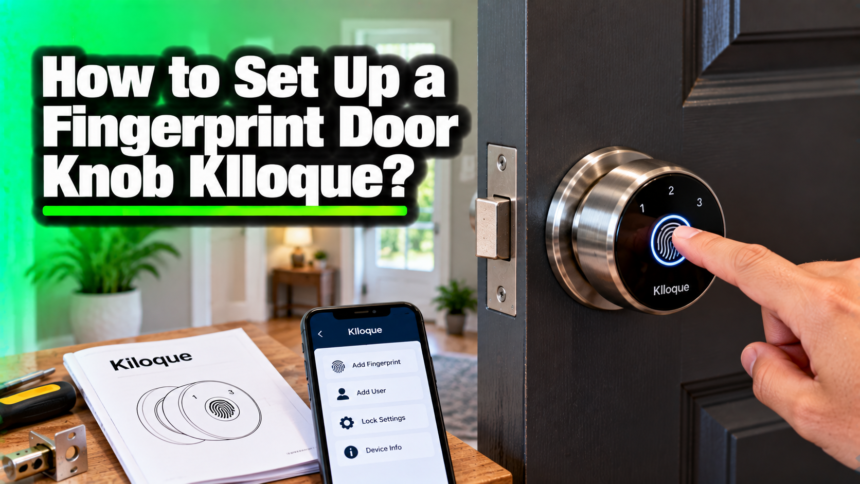
To set up a KLLOQUE fingerprint door knob, you install the knob on your door, save the first fingerprint as the admin, then add the fingerprints, codes, and app access you want for everyone else. Most people finish the whole thing in about 20 to 30 minutes with a screwdriver and the parts in the box.
Here is the full process, from checking that the knob fits your door to fixing the small snags that trip people up on day one.
What comes in the box, and what you need
Lay out the parts before you start so you know what you are working with. A KLLOQUE fingerprint knob set has an outside knob with the fingerprint reader built in, an inside knob, a latch, a mounting plate, a bag of screws, and two or three backup metal keys. Some models also add a number keypad and a USB-C port for emergency power. You supply one thing: a Phillips screwdriver.
Power depends on the model. Some KLLOQUE knobs run on AA batteries, and others use a built-in rechargeable battery you top up with a USB-C cable.
Check which one you have and get it ready first, either with a full charge or a set of fresh batteries, so setup does not stop halfway. A dip in power partway through enrollment is the most common reason a first setup fails.
Does the KLLOQUE knob fit your door?
Measure your door before you take the old knob off. A KLLOQUE fingerprint knob fits a standard door, but “standard” covers a range, so three quick checks save you a return trip to the store.
- Door thickness. Most fit doors from about 1.35 to 1.77 inches (35 to 45 mm) thick. A regular interior or front door sits inside that range.
- Backset. This is the distance from the door edge to the center of the knob hole, and it is almost always 2-3/8 inches or 2-3/4 inches. The KLLOQUE latch adjusts to both.
- Bore hole. The round hole that holds the knob is normally 2-1/8 inches across, with a 1-inch hole on the door edge for the latch.
If your door already has a knob, it almost certainly matches these sizes, so you can swap straight over. A brand new door with no holes needs them cut first with a hole saw, or drilled by a handyman. Do this check now and the rest of the job is a simple screw-in.
It also helps to pick the right door for it. A fingerprint knob shines on the doors you use most, like a front door, a bedroom, a home office, or a garage entry. On an exterior door, make sure the reader faces out and the keyhole and USB-C port stay reachable from outside, since that is your backup way in if the power ever runs flat.
How to install the KLLOQUE fingerprint door knob?
Installing the knob is the longest part of setup, and it is all screwdriver work. Follow these steps in order, and keep the door open until the very end so a locked bolt cannot trap you.
- Remove the old knob. Undo the two screws on the inside knob, pull both halves off, then unscrew the latch plate on the edge of the door and slide the latch out.
- Fit the new latch. Slide the KLLOQUE latch into the edge hole with the angled side of the bolt facing the direction the door closes. Screw its faceplate flat against the door edge.
- Set the outside knob. From outside the door, feed the connecting cable and the square spindle through the latch. Hold the fingerprint reader straight up so it sits level once tight.
- Attach the mounting plate. On the inside, plug the cable into the socket on the mounting plate, tuck the extra cable in neatly, then screw the plate to the door until it sits flush and does not wobble.
- Fit the inside knob. Line the inside knob up with the plate, push it on, and tighten the set screws so both knobs feel solid.
- Add power. Put in the AA batteries or charge the built-in battery until the light shows a full charge. The reader should wake and light up when you touch it.
- Test before you program. With the door still open, turn each knob and work a backup key in the keyhole. The bolt should slide in and out smoothly. Fix any stiffness now, not after the lock is live.
How to add the first (admin) fingerprint?
Add the admin fingerprint before anything else, because that first print controls the lock and lets you add or remove everyone later. Wake the reader, then start admin or master setup the way your model’s manual shows. On most KLLOQUE knobs that means pressing a small button under the battery cover, or entering a starting code, to open programming mode.
Now press the same finger on the reader 5 to 8 times, lifting it fully off between each press. You will hear a beep for each good read, and a green light tells you it saved.
Two things make this go well: pick a finger you will actually use at the door, like an index finger or thumb, and press the flat pad of the finger squarely on the sensor, not the tip or the side edge. A clean, dry finger reads far better than a damp one.
How to add more fingerprints, users, and codes?
Once the admin is saved, add everyone else the same way. Open the add-user mode, pick the next empty slot, and scan each new finger 5 to 8 times until it saves. Most KLLOQUE knobs hold dozens of fingerprints, so a whole household and a few regular guests fit with room to spare.
For models with a keypad, set a 4 to 8 digit code from the code menu in the same programming mode. Give each person their own finger and their own code rather than sharing one. That way you can delete a single user later, say a former roommate or a house guest, without wiping everyone and starting over. It is also worth enrolling a second finger for anyone who uses the door daily, so a cut or a bandage does not lock them out.
Setting up the KLLOQUE app
The app is optional, and the knob works fully without it, so skip this if you only want touch-and-go entry. To use it, download the KLLOQUE app, turn on Bluetooth, stand next to the lock, and follow the pairing prompt to link the two. Once paired, you can add or delete fingerprints and codes from your phone, read a log of who opened the door and when, and send a temporary guest code without being home to punch it in.
One limit is worth knowing up front. Plain Bluetooth only reaches a room or two, so app control works when you are near the door, not from across town. To lock, unlock, and check the door from anywhere, you need the separate KLLOQUE Wi-Fi gateway.
It plugs into an outlet near the door and passes commands between the lock and your home Wi-Fi, which is what turns a Bluetooth lock into a true remote one. If you rent, or you just want touch entry, you can leave the gateway out and still use every feature at the door itself.
Auto-lock and the door modes
Turn on auto-lock so the door secures itself. With it on, the bolt throws again a set number of seconds after the door opens, usually somewhere between 5 and 30 seconds that you can adjust, so the door locks even on the days you forget. For a front door, this one setting does more for your security than any other.
Many KLLOQUE knobs also run in three modes that are handy once you know them. Passage mode keeps the door unlocked, which suits a busy afternoon of carrying things in and out. Entrance mode is the normal state, locked, where a fingerprint or code opens it. Privacy mode locks it from the inside for a bedroom or bathroom. Switch between them from the app or a button on the inside knob.
How to factory reset a KLLOQUE knob?
A factory reset wipes every saved fingerprint and code and returns the lock to how it left the box. You need it in three cases: you bought a used knob, you lost admin access, or the setup got muddled and you want a clean start. It does not undo the physical install, so the knob stays on the door.
Find the reset button, which usually sits under the battery cover on the inside knob, sometimes as a small pinhole you press with a paperclip. Press and hold it for about 5 seconds until you hear a beep or see the light flash, then let go. The lock erases all user data and restarts in roughly a minute. After a reset the very first fingerprint you add becomes the new admin, so set that up straight away, then re-add your users and test a backup key before you close the door.
Fixing common setup problems
Most first-day trouble comes down to power or a dirty sensor, and both are quick fixes. Use this table to sort out the usual snags.
| Problem | Likely cause | Fix |
| Reader will not respond or light up | Battery dead or too low | Replace all AA cells as one set, or charge the built-in battery fully |
| Finger not recognized | Wet, dry, or dirty finger, or wrong angle | Wipe the finger and the sensor, press the flat pad squarely, and re-enroll from a few angles |
| Bolt sticks or will not turn | Latch or mounting plate slightly off | Loosen the screws, line the parts up with the door open, and retighten evenly |
| Enrollment stops partway | Power dipped mid-setup | Fit fresh power, delete the half-saved slot, and enroll it again |
| App will not pair | Bluetooth off or phone too far | Turn on Bluetooth, stand right next to the lock, and restart the app |
Two habits prevent most of these. Wipe the reader with a soft dry cloth now and then so skin oil does not build up, and always swap the whole set of batteries together rather than one weak cell at a time.
Tip: keep your backup keys somewhere outside the house, like a car or with a trusted neighbor, not inside behind the locked door. If the battery ever dies and your model has no outside keyhole, that spare key or a USB-C power bank at the base is your way back in.
Conclusion
Setting up a KLLOQUE fingerprint knob comes down to three moves: fit it to your door, save the admin fingerprint first, then add the people, codes, and app access you want. Turn on auto-lock, test a backup key, and keep the sensor clean. Do that and you get a door that opens with a touch in under a second and locks itself behind you. Keep the manual and a spare key handy for the rare reset.
Frequently asked questions
How long does it take to set up a KLLOQUE fingerprint door knob?
About 20 to 30 minutes. Installing the knob takes most of that time. Once the lock is on the door and powered, adding one fingerprint takes under a minute.
How many fingerprints can a KLLOQUE knob store?
Most models hold dozens of fingerprints plus separate keypad codes, so a full household and a few guests fit easily. Check your model in the manual for the exact number.
What happens if the battery dies?
You can still get in with a backup metal key. Rechargeable models also take a quick top-up from a USB-C power bank at the base, enough to wake the lock and open it.
Do I need the app or Wi-Fi to use it?
No. The fingerprint reader and the key work on their own. The app adds phone control over Bluetooth, and a separate Wi-Fi gateway adds remote access from anywhere.
Can I add fingerprints without the admin fingerprint?
No. You need admin access to add or remove users. If you lost it, do a factory reset, then set a new admin as the very first fingerprint you enroll.
Related Articles
How to Close Blinds the Right Way? for Every Type
Can a Nest Thermostat Replace Heating and AC?